The Heidi Windows Destop App can be downloaded from here - Heidi App - Free Download for Mobile & Desktop | Heidi AI
To use the web browser version, navigate to https://scribe.heidihealth.com/
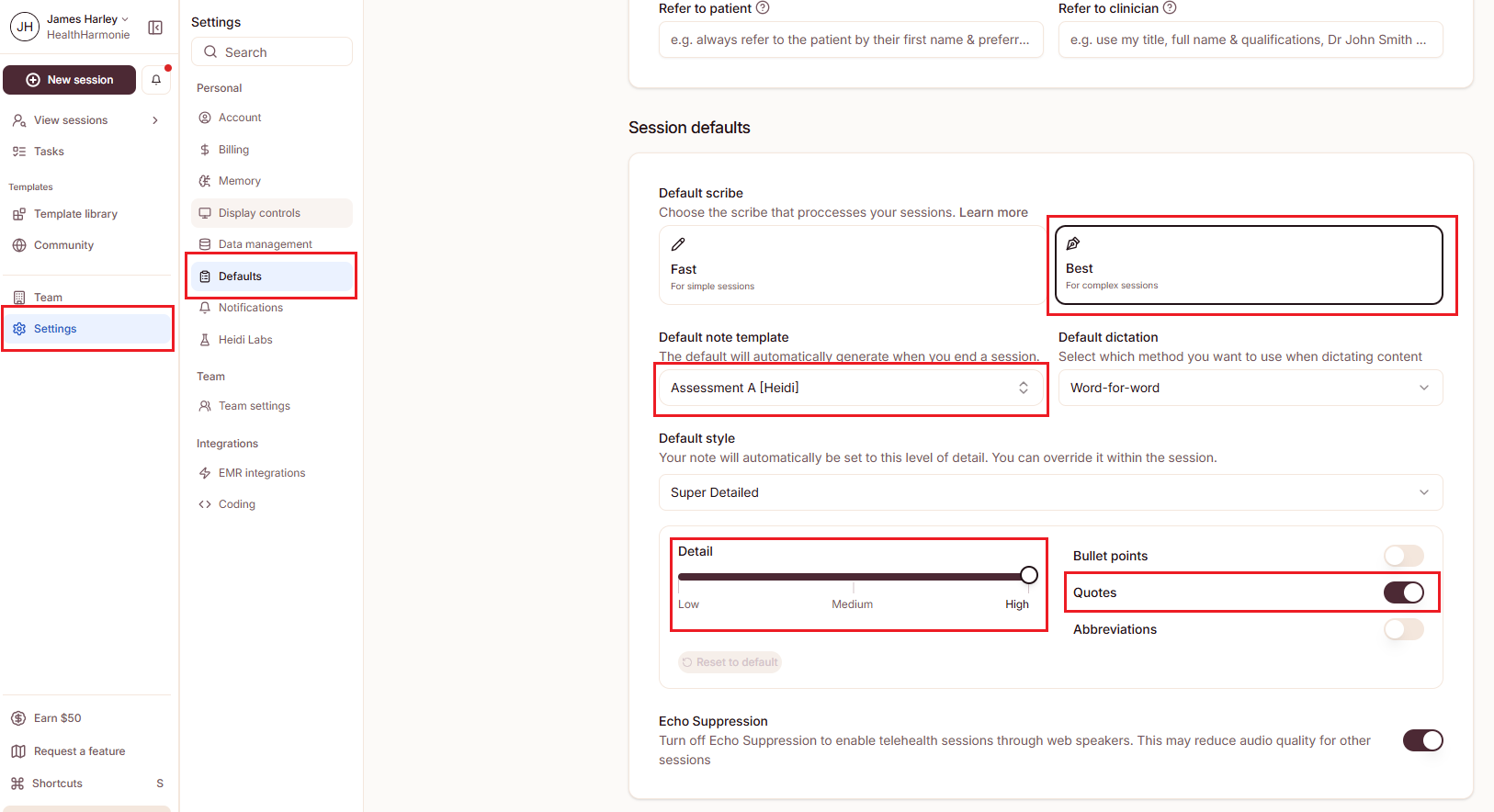
The first time you login to Heidi, navigate to Settings > Defaults > Session defaults and apply the following settings (select the appropriate Default note template that you'll be working on):
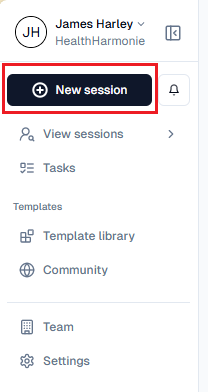
To start a new session for a patient consultation click New session on the top left hand side of the screen.
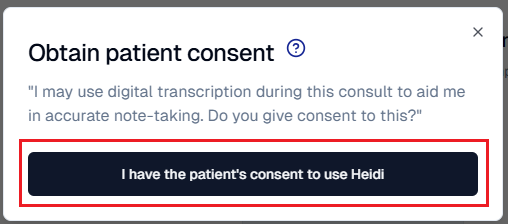
A pop-up message will appear asking if the patient has given consent. If the patient has given consent then click Yes, if not then click the x in the pop-up message.
Patient does give consent
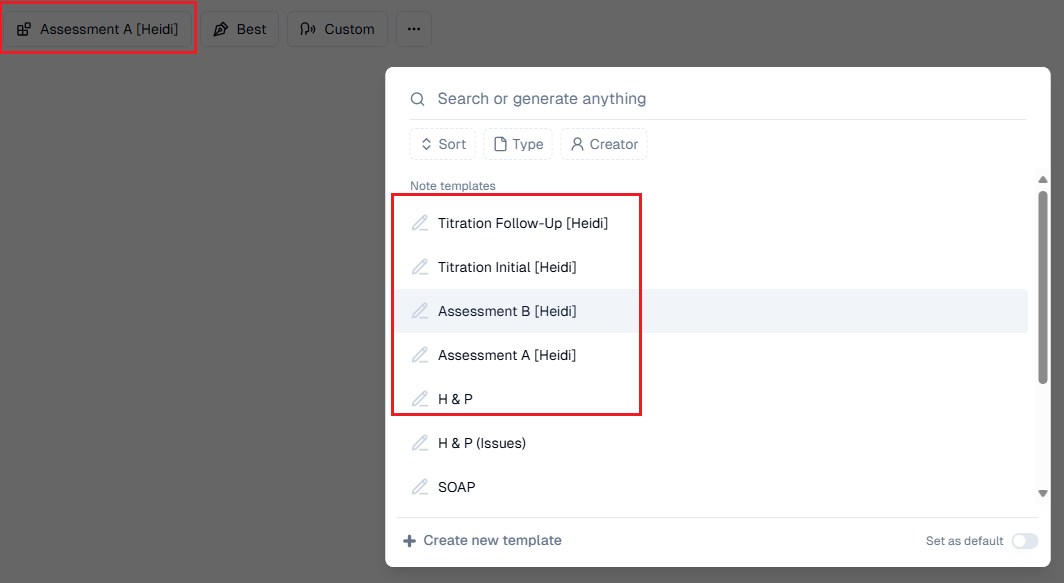
Select the appropriate template for the consultation you are carrying out (i.e. Assessment A, Assessment B....) - you may have this already selected in your default settings (above).
At the top of the transcription pane, select Context:

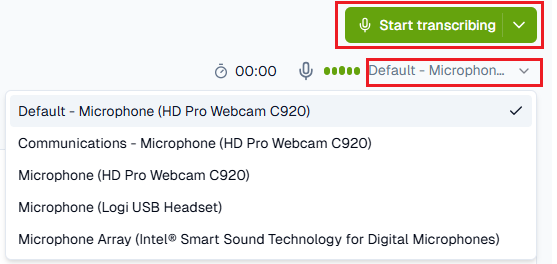
If the patient has given consent you can start transcribing the consultation by selecting Start Transcribing in the top right corner of the screen. Before you start, make sure your Default Microphone is correct:
State/confirm the patient’s Name, DOB and Hospital Number
After confirmation of the patient’s details, the clinician can continue with the consultation as they normally would in EMIS, including any non clinical discussion. The system will record in the background and then transcribe the whole conversation. Once the consultation is over, click Stop Transcribing.

Once the transcription stops Heidi will type the details of the consultation in real time exactly as the conversation took place.
The system will automatically generate the clinic letter using the template selected above.
You may need to copy and paste this into a Clinical Letter in EMIS (i.e Assessment A, Assessment B....) - click on the Copy button to copy the transcription to your clipboard:

Go back to EMIS, and paste into the appropriate area in the Clinical Letter.
If a patient requires an additional letter, potentially a referral onwards then they system can use the detail in the clinical letter to create this automatically. Click on Create at the top right.

Select from the menu options a templated letter or type in the description what the letter should be as above. Select the option.
Heidi will generate the additional letter. You will see the additional letter as a separate tab at the top along with the original clinic letter.

If you wish to send a letter to the patient to inform them of the actions and consultation, instead of copying them in you can create an additional letter using the steps above and select Letter to Patient.

Verify the content of the letters to ensure you are happy they reflect the patient consultation.
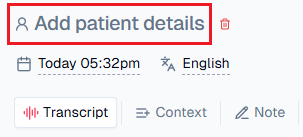
If you are happy with the outputs of the letter/letters then select the patient box on the top left and enter the Patient Name – Hospital Number if it has not already been populated from the transcription.
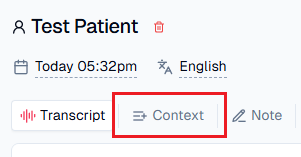
You can add context to the transcription prior to the appointment or at the end by adding attachments, referrals, notes by clicking on Context.
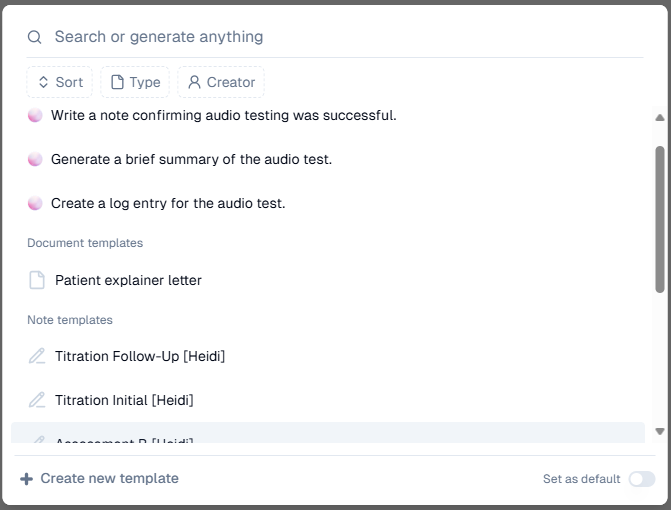
Clinicians can also use the Ask Heidi function which utilises the built in AI to generate further notes, letters etc. Click on Ask Heidi to do anything and type in what you would like it to generate and it will appear at the bottom of the letter.

Heidi has built in templates from users across the world, you can access these via the Template library on the left side menu bar. You can search for templates for any scenario and then add to your favorites for future use. Similarly if a clinician has a preference for a template they can send this to Medinet/HealthHarmonie and we will build this template into the system for you.
Once you are happy that the letter has been completed. You can then move onto the next patient by selecting New Session on the top left hand corner and repeat the steps above.
Patient does not give Consent
If a patient does not give consent for the consultation to be recorded for transcription, you can use Heidi like a normal dictation service. Once the consultation is over and the patient has left the room select the drop down button and select Dictating.
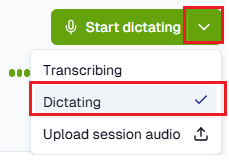
Confirm the patient’s Name, DOB and Hospital Number
Dictate the clinic letter as you would normally and the system will transcribe this in real time. You can then follow the steps in the Patient has consented section to create the clinic letter and additional letter.
Next Steps
Medinet/HealthHarmonie are integrating Heidi with their main systems, Dynamics 365 and EMIS Web. Once per day the letters created for that day will be automatically sent to the internal systems for the admin teams to action.
Heidi can handle foreign languages, if the consultant and patient converse in any language the system will transcribe it and convert it to English for the letters.
Was this article helpful?
That’s Great!
Thank you for your feedback
Sorry! We couldn't be helpful
Thank you for your feedback
Feedback sent
We appreciate your effort and will try to fix the article