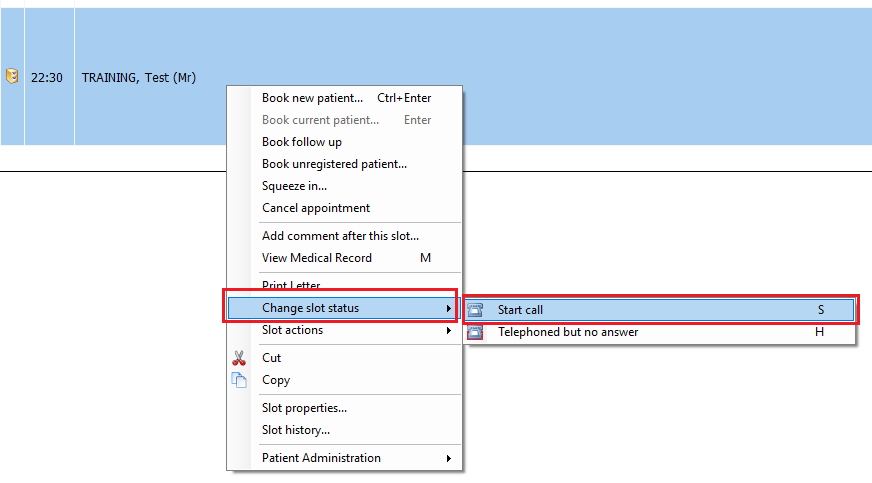
From the Appointment Book, right click on the patient slot and select Change slot status > Start call:
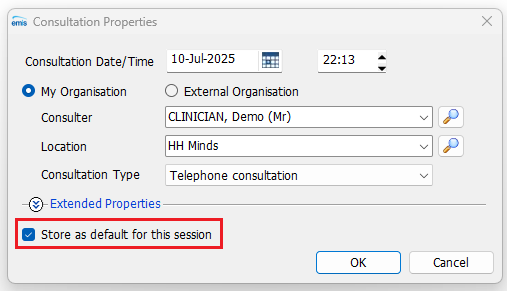
Check the Consultation Properties are correct and check the box 'Store as default for this session':
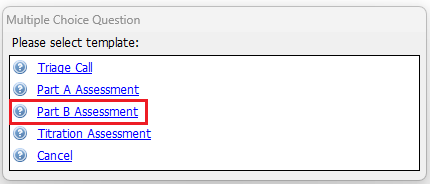
You will be presented with a pop up window with multiple choice options. Select Part B Assessment:
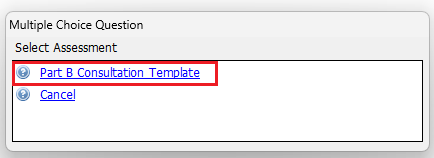
On the next pop up window select Part B Consultation Template:
Confirm you checked the patient ID. Complete the Diagnosis, Medication and Outcomes:
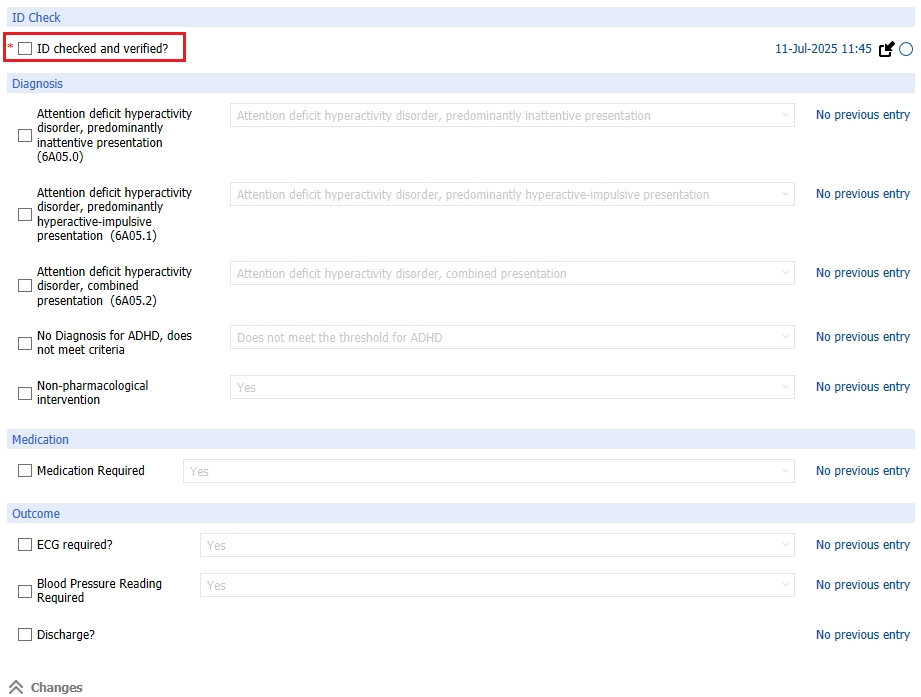
When the questionnaire has been completed with the patient, click on Save Template:

You must now save the responses into the EMIS Consultation - click on the Save button:

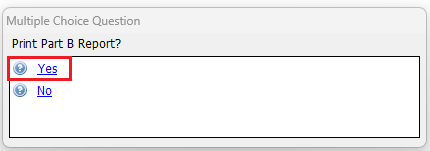
When asked to Print, select Yes
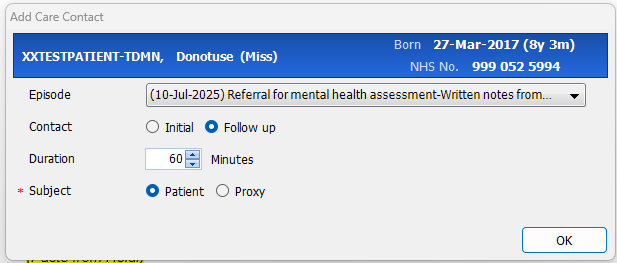
When presented with this pop up Select Follow Up, Enter the minutes of the consultation Click OK:
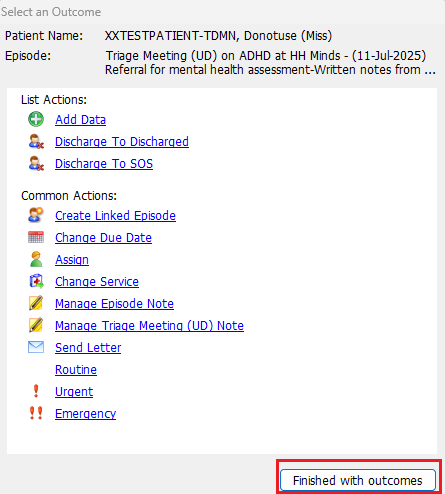
You will then be presented with this pop up. Click Finished with Outcomes
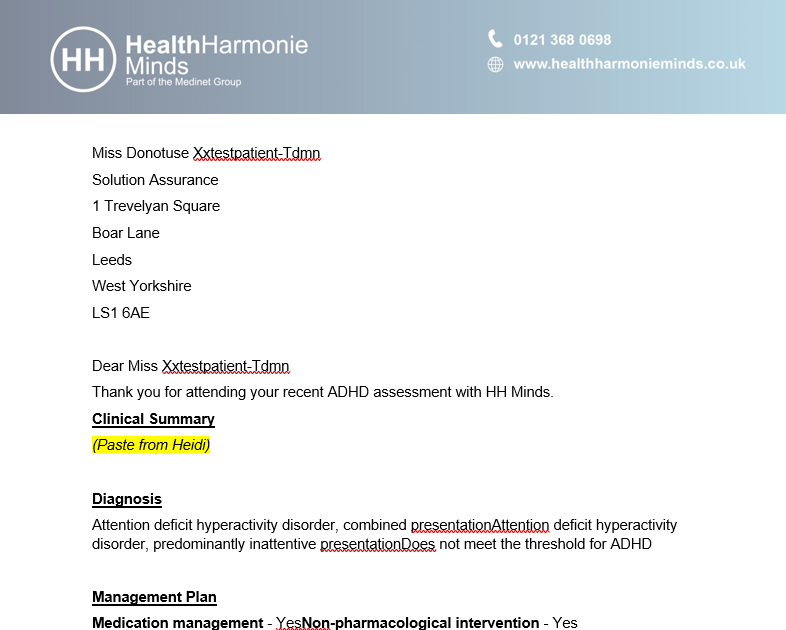
You will be presented with the output report. Review the prefilled data and edit as necessary. Paste the Heidi notes into the Clinical Summary section
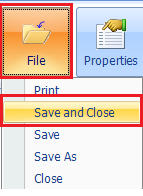
Click File > Save and Close
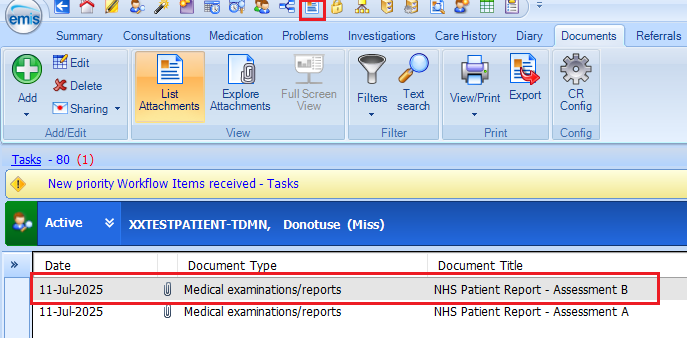
The file will be saved in the Document section of the patients record:
Watch the video here.
Was this article helpful?
That’s Great!
Thank you for your feedback
Sorry! We couldn't be helpful
Thank you for your feedback
Feedback sent
We appreciate your effort and will try to fix the article