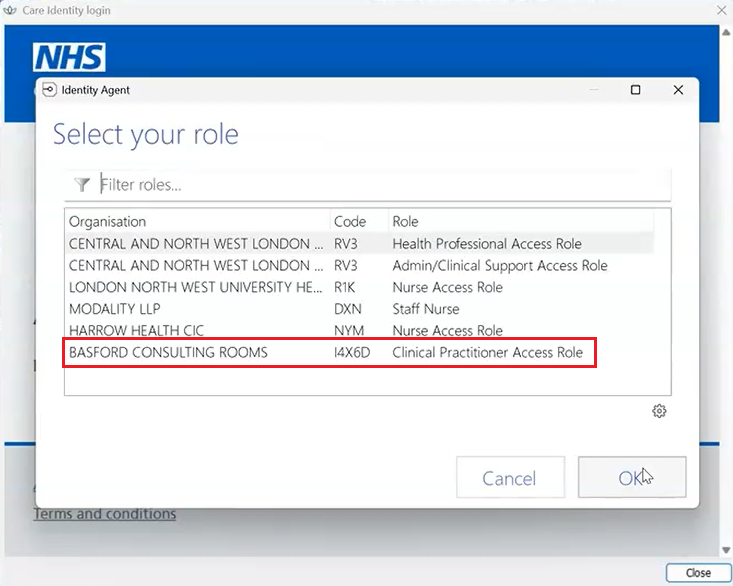
Make sure you have logged into EMIS with your Smartcard Role:
After you have completed a consultation with your patient and you need to prescribe medication, making sure the patient record is still open click on the Medication button:

Alternatively, if you are still in Consultations, select the Medication tab:

Before you can issue medications to a patient, their record must be synchronised with the PDS Service on the NHS Spine. Patients whose EMIS record is not syncronised with the NHS Spine will show a red PDS symbol on the patient précis bar :

To synchronise the record, click on the red PDS symbol - a window will pop up showing all the PDS patient differences between the local EMIS Record and the NHS Spine:
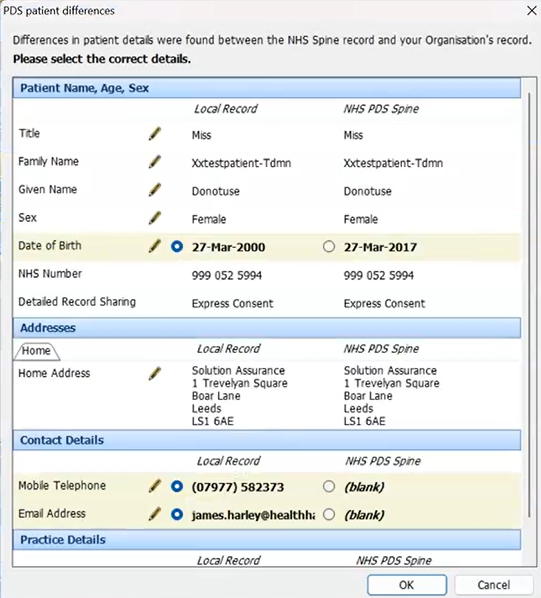
Select which ones are the most current (Local Record or NHS PDS Spine) and click on OK. The PDS symbol should then turn blue:

In Medication, select Add Drug:

and start adding the drugs you wish to prescribe:
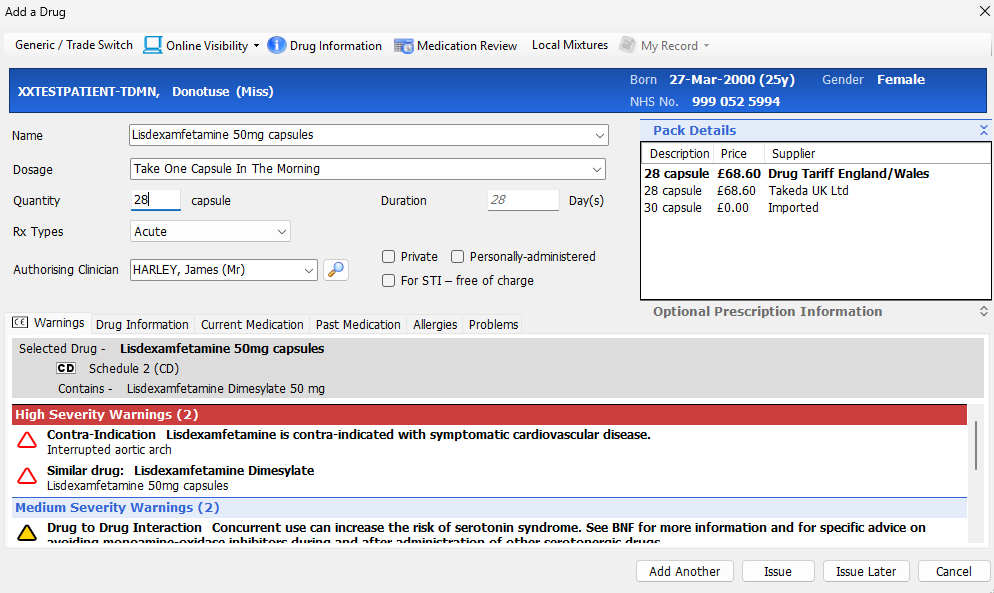
When you have added all the drugs, select Issue.
Check the Primary Pharmacy is correct with the patient:
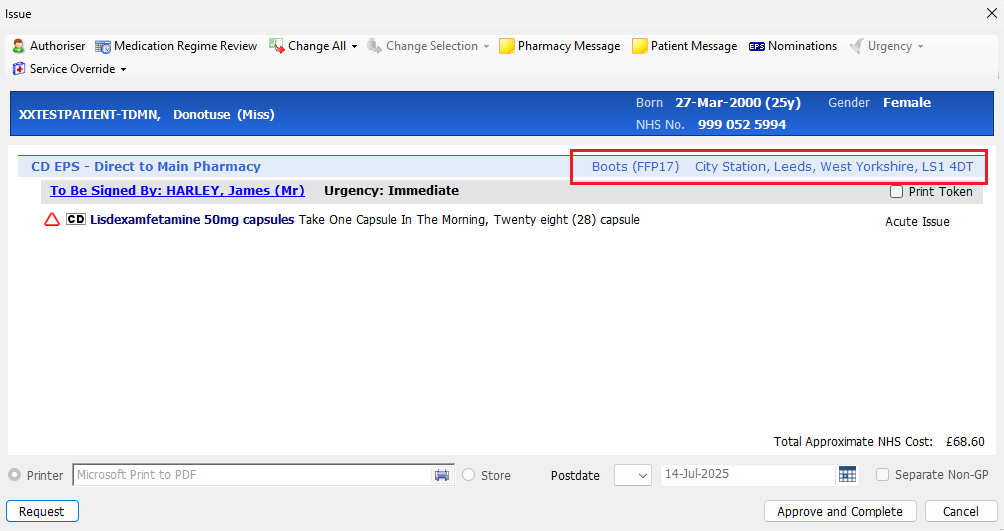
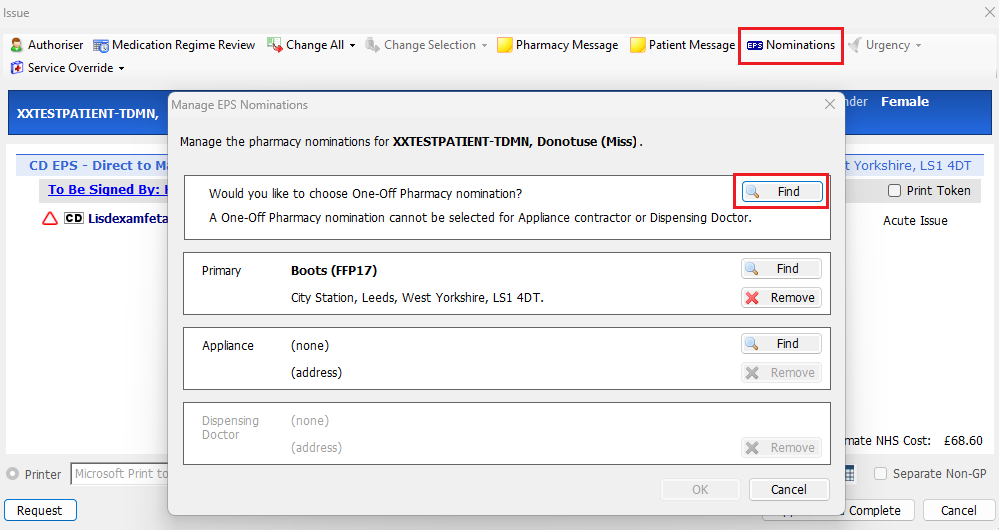
If the patient wishes to pick up their medication from another Pharmacy, click on the Nominations button and then click on Find to locate a one-off Pharmacy (searching by Post Code):
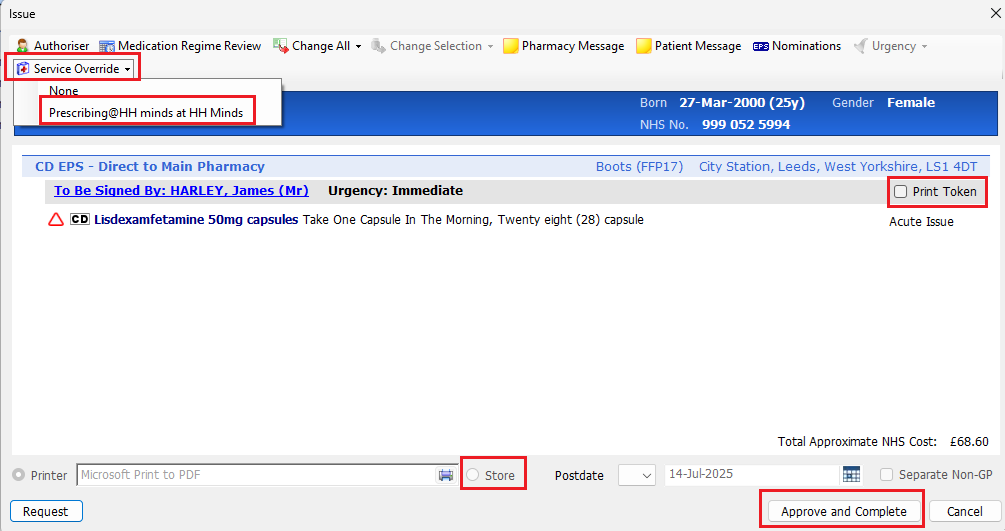
Select Service Override and select Prescribing@HH Minds at HH Minds. Check the Print Token check box in case you need to send this to the patient (see Reprinting prescription tokens in EPS) and Store. Click on Approve and Complete:
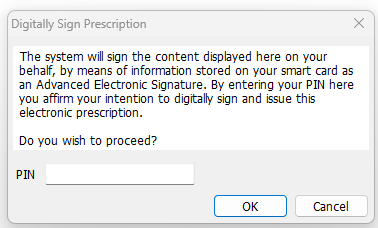
You will then be asked to digitally assign the prescription using your Smartcard PIN:
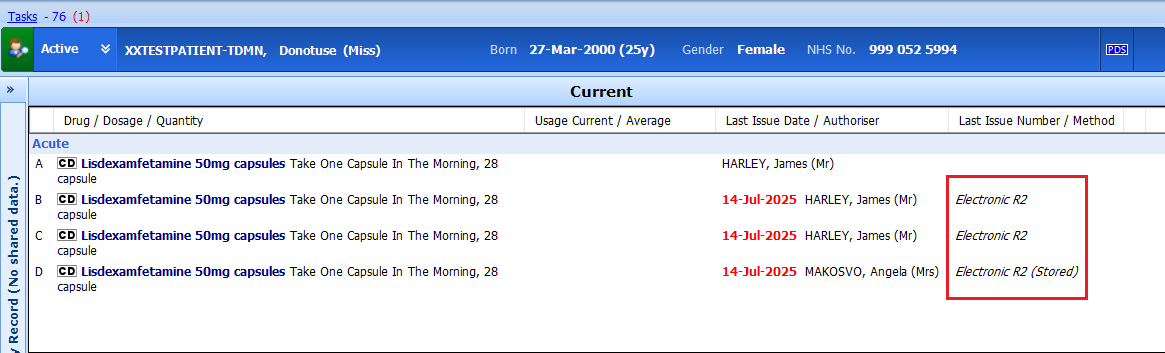
The medications will show as Electronic R2 (electronic prescription):
Watch the video here (you will need to log in with your Health Harmonie account).
Was this article helpful?
That’s Great!
Thank you for your feedback
Sorry! We couldn't be helpful
Thank you for your feedback
Feedback sent
We appreciate your effort and will try to fix the article