Set up SafeNet Token
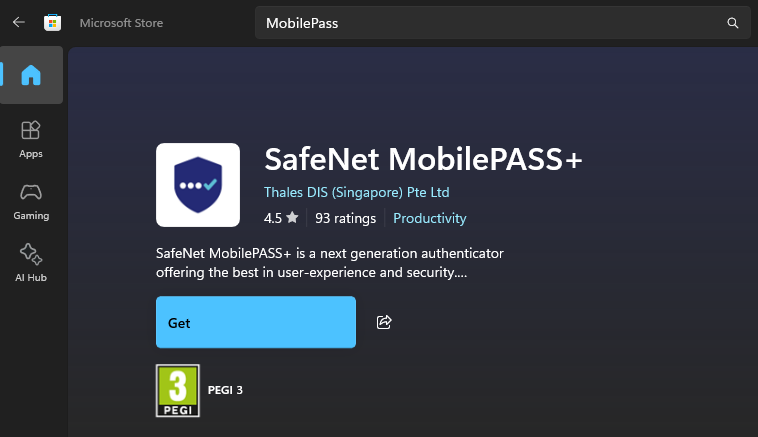
Install SafeNet MobilePass+ on either your mobile phone (from the Apple App Store or the Google Play Store. Alternatively, if you will always be using the same laptop, you can download it from the Microsoft Store and install it on your laptop:
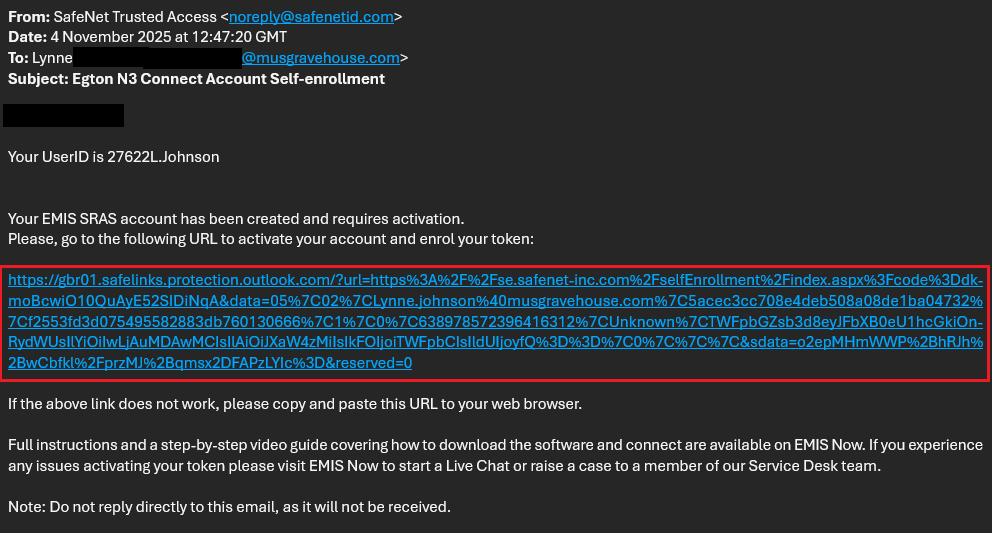
You should have received an email from 'noreply@safenetid.com' like the one below. Click on the blue hyperlink to enroll your Token (if using MobilePass+ on your phone, do this from your phone):
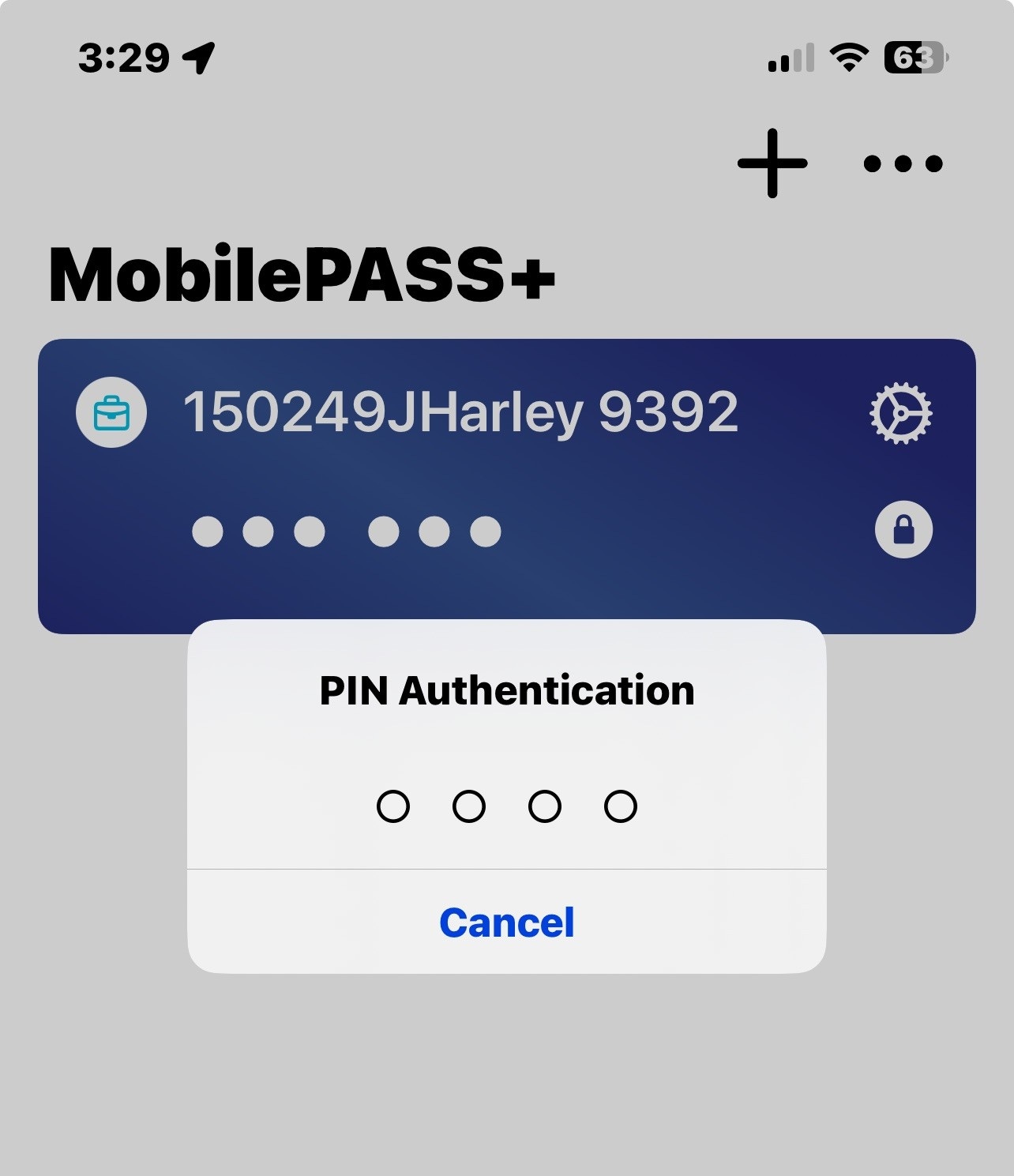
You should now have a token set up on your MobilePASS+. During set-up you would have been asked to set up a PIN Authentication. Every time you need a new password (PIN), open the App, enter your PIN Authentication and a six digit PIN will be generated. This PIN lasts for 60 seconds.
Download and Install Cisco AnyConnect Secure Mobility Client
Next you need to download the Cisco AnyConnect Secure Mobility Client. Navigate to the link below and download.
Install-emis-Secure-Remote-Access.exe
Once downloaded, run it to install the Cisco AnyConnect Secure Mobility Client .
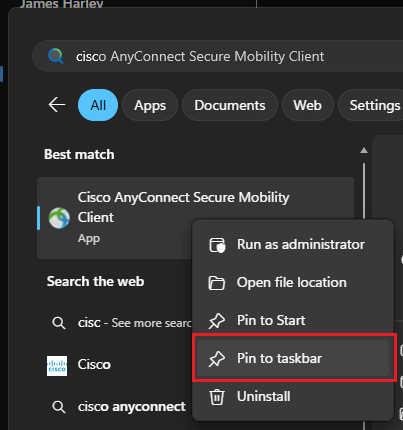
Once installed, do a Windows Search for 'Cisco AnyConnect Secure Mobility Client' and click on the App top open

TIP - Right click on the App and choose 'PIN to taskbar' to make it easier to find next time:
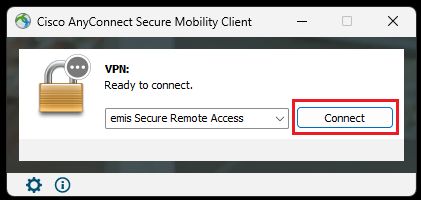
When the Cisco AnyConnect Secure Mobility Client window opens, click on Connect:
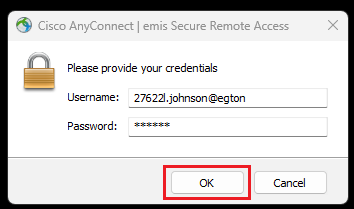
Enter your username given to you in the email above, and generate the password on your MobilePASS+ app and enter the 6 digits in the password and then click on OK:
The Cisco AnyConnect Secure Mobility Client should successfully connect, connecting you to the Health & Social Care Network (HSCN).
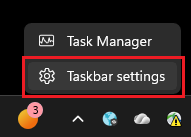
TIP: Right click on the Windows Taskbar and select Taskbar settings:
Choose Other system tray icons:
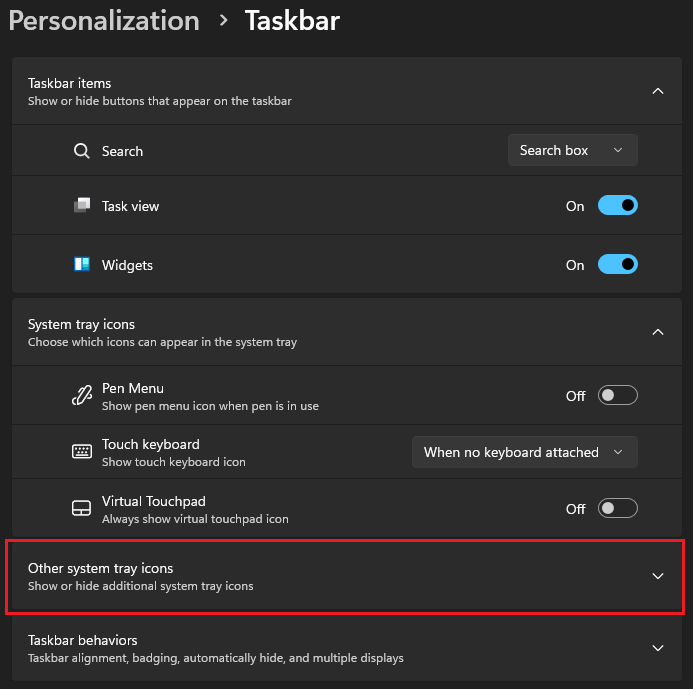
Select On next to Cisco AnyConnect User Interface:
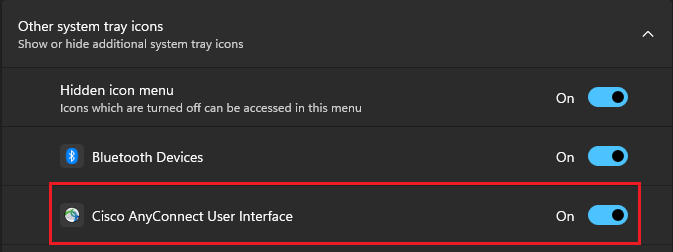
This will then show you when the Cisco AnyConnect Secure Mobility Client has successfully connected in your System Tray (it will have a padlock on the icon)
Download and Install EMIS Web
Once connected to the VPN (Cisco AnyConnect Secure Mobility Client ) you can now download and install EMIS Web. Download the EMIS Web installer from the link below:
Once downloaded, run the installation file. Follow the installation guide below but use the Organisation ID 153702:
Installing EMIS Web : Medinet Operations
Was this article helpful?
That’s Great!
Thank you for your feedback
Sorry! We couldn't be helpful
Thank you for your feedback
Feedback sent
We appreciate your effort and will try to fix the article