Please note, EMIS Web can take up to 40 min to download and install. You must be connected to the VPN before you can download and install EMIS Web.
All software can be found here (you will need to login with your HealthHarmonie Office 365 account):
Download the EmisHealthInstaller.exe to your local machine from the EMIS WEB folder.
Double click on the EmisHealthInstaller.exe to start the installation.
You may get a Windows User Account Control message - Do you want to allow this app from an unknown publisher to make changes to your device? Click on Yes.
Enter the Organisation ID: 153156 and click on Install:
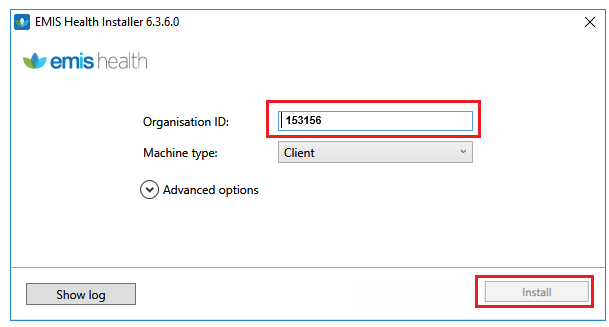
The download process can take up to 20 minutes. Make sure you monitor this as you will need to click on the Launch and Close button to install EMIS Web:
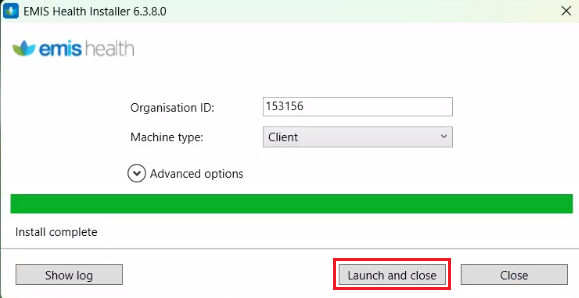
When EMIS has downloaded (above), click on the Close and Install button. Click on the Show update progress button.
During the Installation you will see the two windows below - again, this process could take up to 20 minutes:
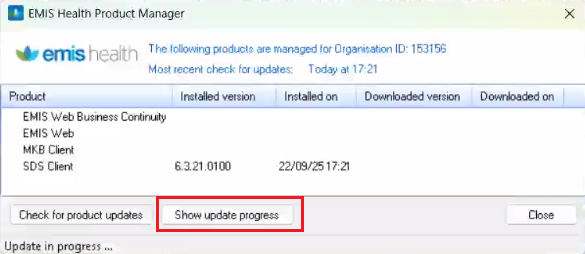
You'll then be able to see the progress:
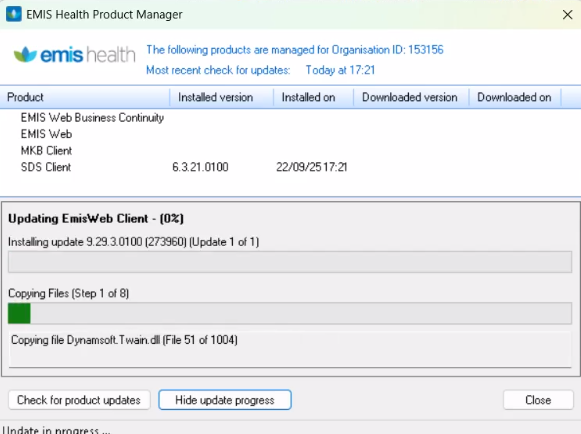
Please note, at times it looks like nothing is happening for around 10 - 20 min - but unless you see an installation error message, it is installing in the background.
When EMIS Web has been fully installed the installer screen automatically closes and an EMIS Web icon will be displayed on the desktop.

Double click on the EMIS Web Icon to log in to EMIS.
You will find the EMIS Web User Guide here.
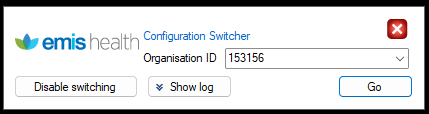
If you will be logging into more that one EMIS Web (i.e for other work), enable the Configuration Switcher. In Windows Search search for 'Configuration Switcher', open it and click on Enable. From now on, enter the EMIS Organisation IDs in here and click on Go.
Next action - install Smartcard Software.
Was this article helpful?
That’s Great!
Thank you for your feedback
Sorry! We couldn't be helpful
Thank you for your feedback
Feedback sent
We appreciate your effort and will try to fix the article