Before installing the VPN software you must ensure you have set up your Health Harmonie Microsoft 365 account.
All software can be found here (you will need to login with your HealthHarmonie Office 365 account):
Download the GlobalProtect64_new.msi to your local machine from the Global Protect VPN folder.
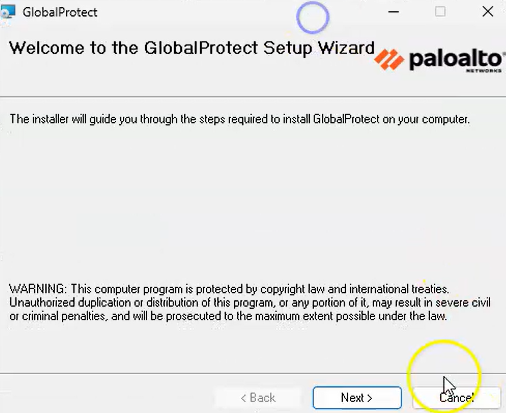
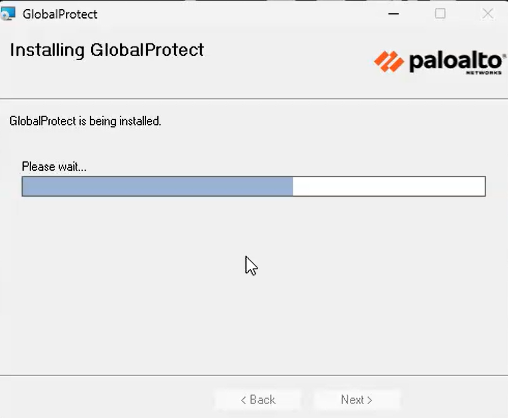
Double click on the GlobalProtect64_new.msi to start the installation. Take all the default settings:
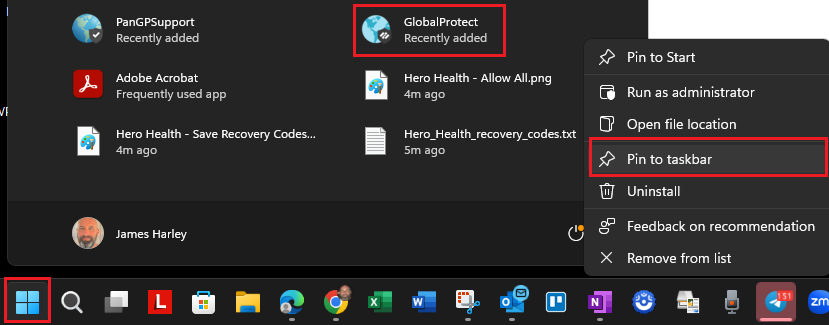
Once installed, PIN the GlobalProtect VPN to your Windows Taskbar (so it's easy to find). Click on the Windows Start Icon, you should see GlobalProtect as a recently added App - right click and select Pin to taskbar:
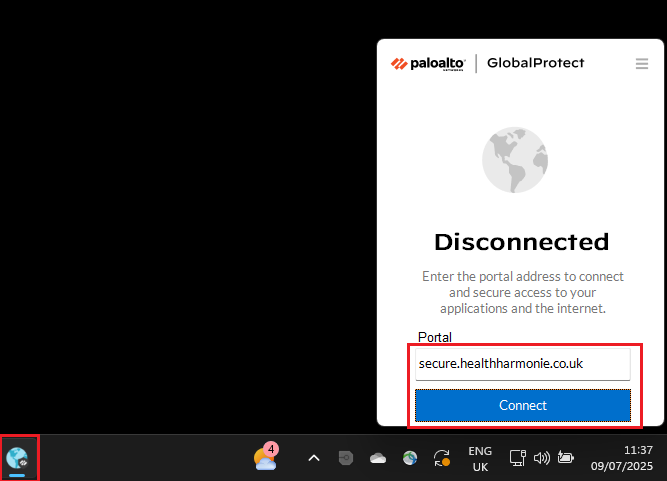
Double click on the GlobalProtect Icon on your Taskbar. For the first time you will need to enter the Portal address: secure.healthharmonie.co.uk - then click on Connect:
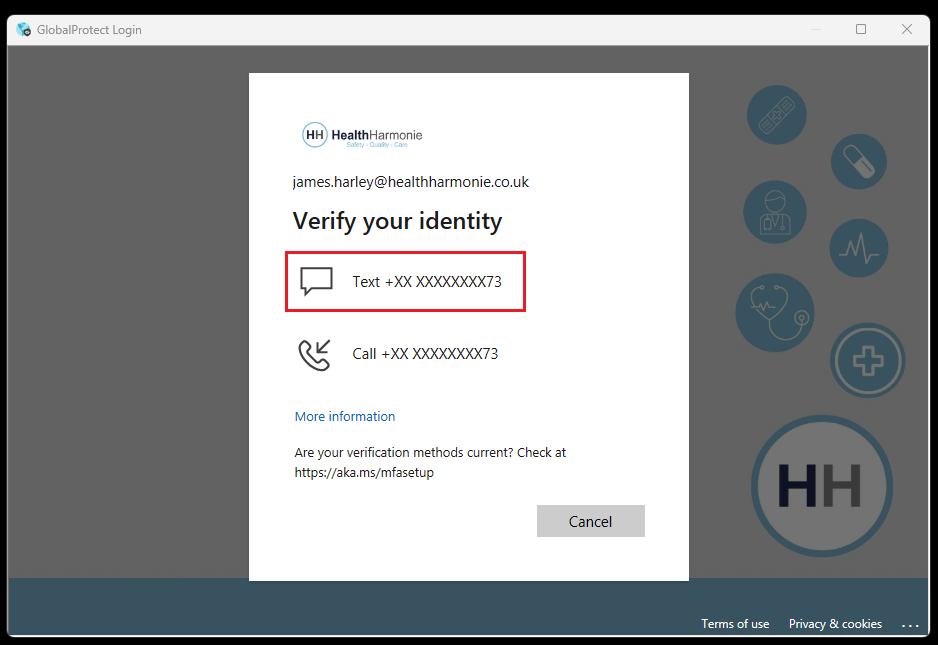
You will be asked to verify your identity. You will be prompted for your Health Harmonie email address and password, and you're personal mobile number for authentication.
Select your number to have a the six-digit code sent as an SMS to your mobile phone:
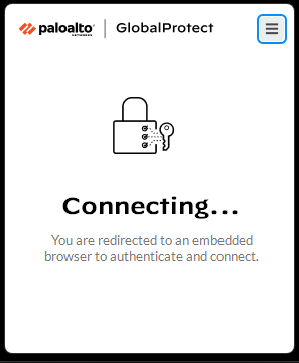
The VPN should then start Connecting:
and then show as Connected:
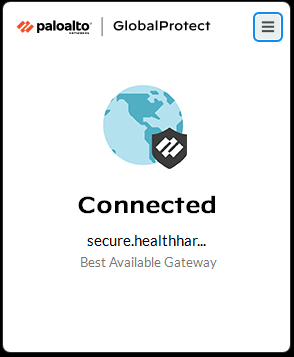
Once connected you will be able to open EMIS Web and connect your Smartcard to the Care Identity Service (CIS) as well as access other NHS Spine Portal services.
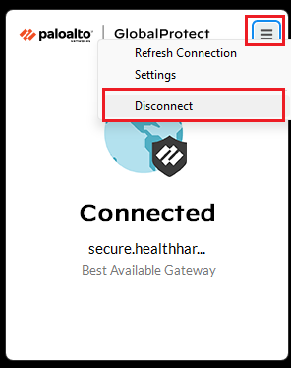
To disconnect, make sure you have signed out and closed EMIS Web then click on the GlobalProtect icon and select Disconnect.
The GlobalConnect VPN, will automatically start when you login to Windows.
Video
Next action - Install EMIS Web.
Was this article helpful?
That’s Great!
Thank you for your feedback
Sorry! We couldn't be helpful
Thank you for your feedback
Feedback sent
We appreciate your effort and will try to fix the article