The Health Harmonie Virtual Desktop will enable staff to access all applications such as EMIS Web, Hero Health, Heidi and Microsoft 365 on any device - Windows, Mac, Android and so on.
To get started, search for the Windows App from the Microsoft Store or the App Store (for MacBook users) and click on Get to download:
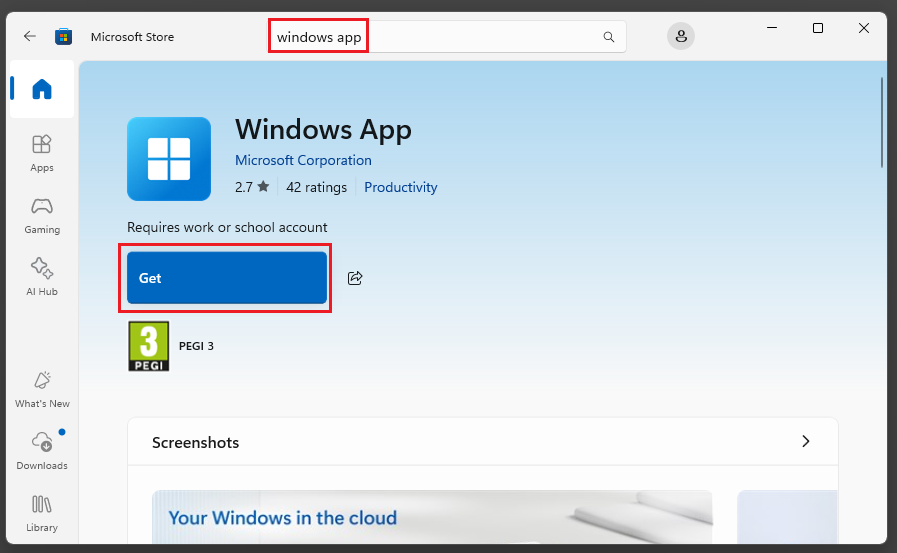
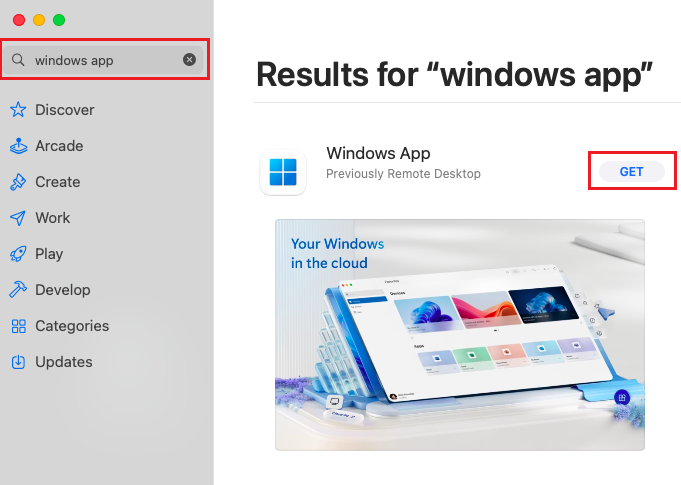
For MacBook users the macOS version must be 13 or later
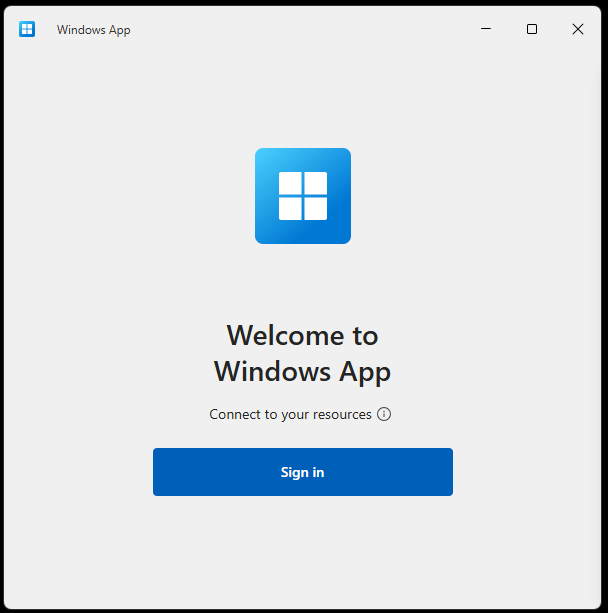
Once installed, open the Windows App and click on Sign in:
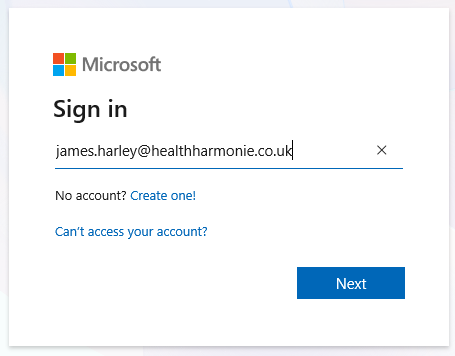
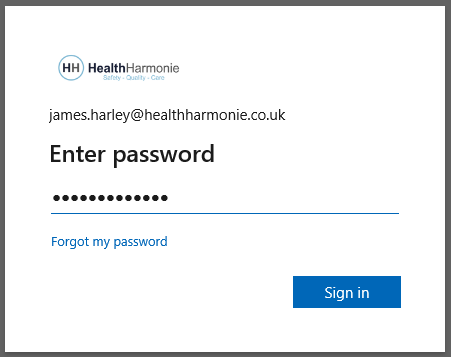
Sign in with your Health Harmonie account:
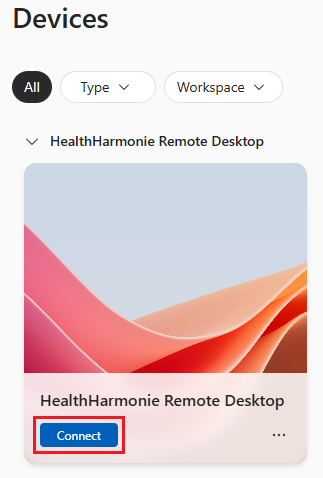
Once signed into the Windows App, click on Connect for the HealthHarmonie Remote Desktop:
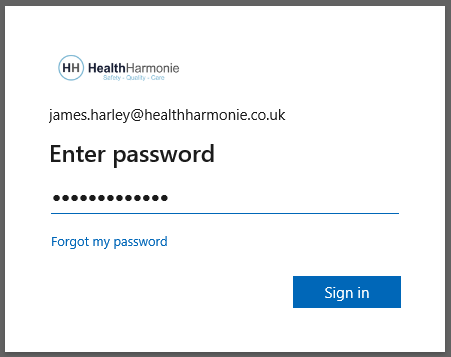
Re-enter your Health Harmonie password:
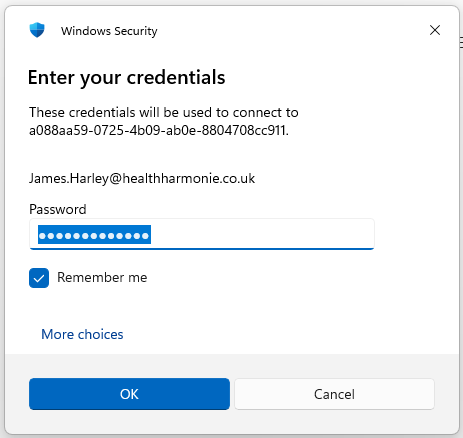
Re-enter your password for the Windows security prompt:
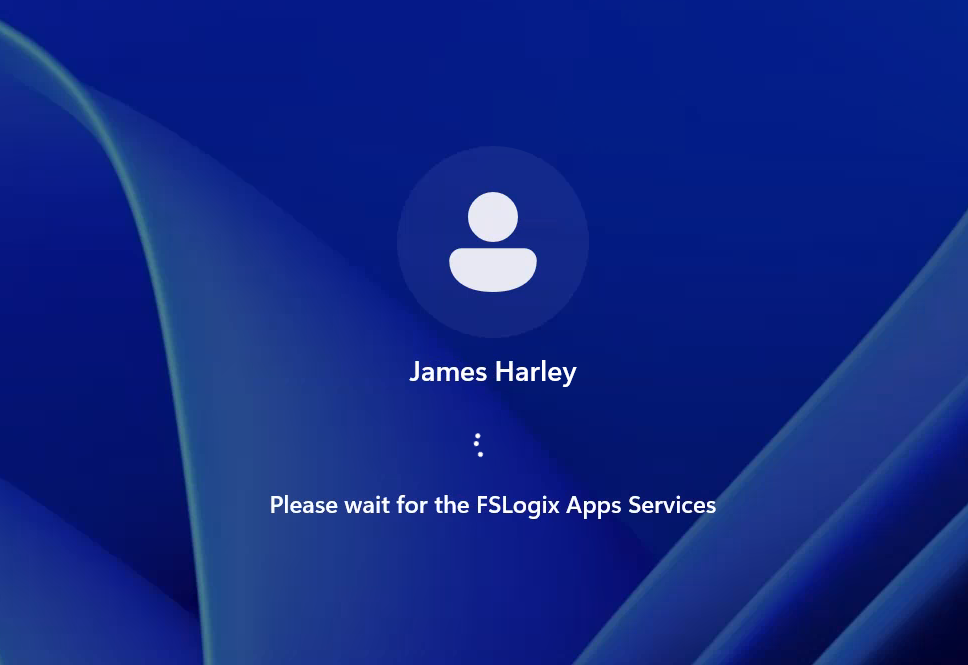
You'll be logged into the Health Harmonie Virtual Desktop:
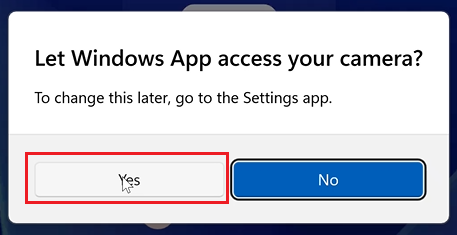
The first time you login you see the message below - you must select Yes:
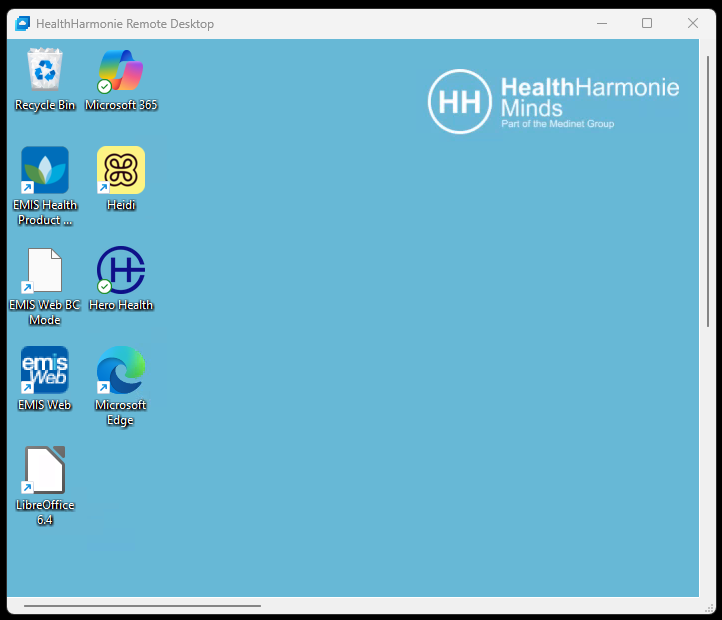
On the Desktop you will find all the Apps required - EMIS Web, Hero Health, Heidi and Microsoft 365:
Please note, there is no Global Protect VPN - the Virtual Desktop is automatically connected to the Health & Social Care Network (HSCN).
Smartcards should also be read from your local device. Simply enter your Smartcard into your Smartcard reader as you already do. The NHS Identity Agent should open on the Virtual Desktop (then enter your Smartcard PIN).
IMPORTANT. If you have an NHS Smartcard Version 09 or later (first 2 digits on the back of your NHS Smartcard), you will need to install the CivMinidriver software on your local laptop.
The NHS Identity Agent will also open on your own device - only use the one on the Virtual Desktop, see video below:Microsoft 365 Apps are not installed on the Virtual Desktop. Access your email, Teams and SharePoint site from the Microsoft 365 desktop shortcut.
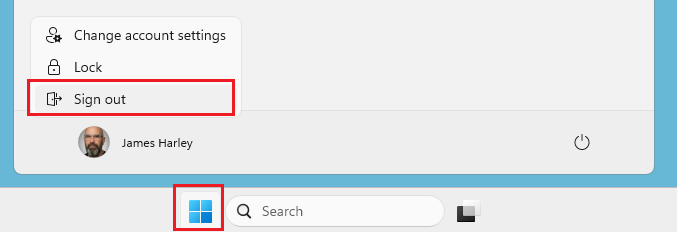
When you have finished, close all Apps and then select the Windows Start button and choose Sign out:
Watch the video
Multiple Displays
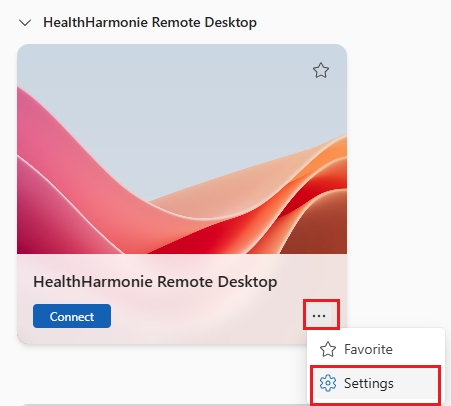
If you want the Virtual Desktop to display across multiple displays, click on the three dots on the HealthHarmonie Remote Desktop App:
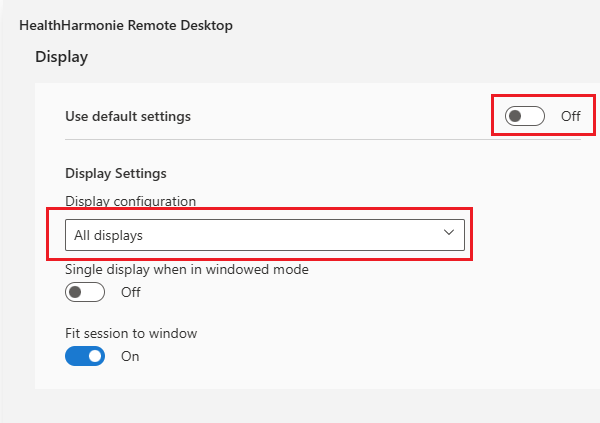
Select Off next to Use default settings and choose All displays under Display configuration:
Was this article helpful?
That’s Great!
Thank you for your feedback
Sorry! We couldn't be helpful
Thank you for your feedback
Feedback sent
We appreciate your effort and will try to fix the article