Open a web browser and go to: https://m365.cloud.microsoft/ and enter your HealthHarmonie email address and Password (you should receive these details in an email).
If you are logged into any other Office 365 accounts, please log out first
You may be asked to reset your temporary password and set up 2FA (two factor Authentication) using your mobile phone number. A six digit code will be sent via SMS to your mobile number.
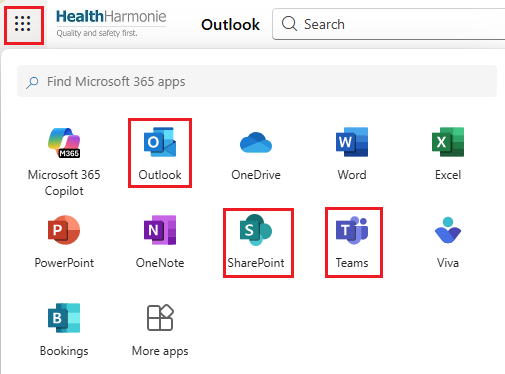
Once you have logged in you should arrive at the Dashboard. In the top left corner you will see the App Launcher. Click on this to see all your Apps. The common ones you will need are SharePoint, Teams and Outlook:
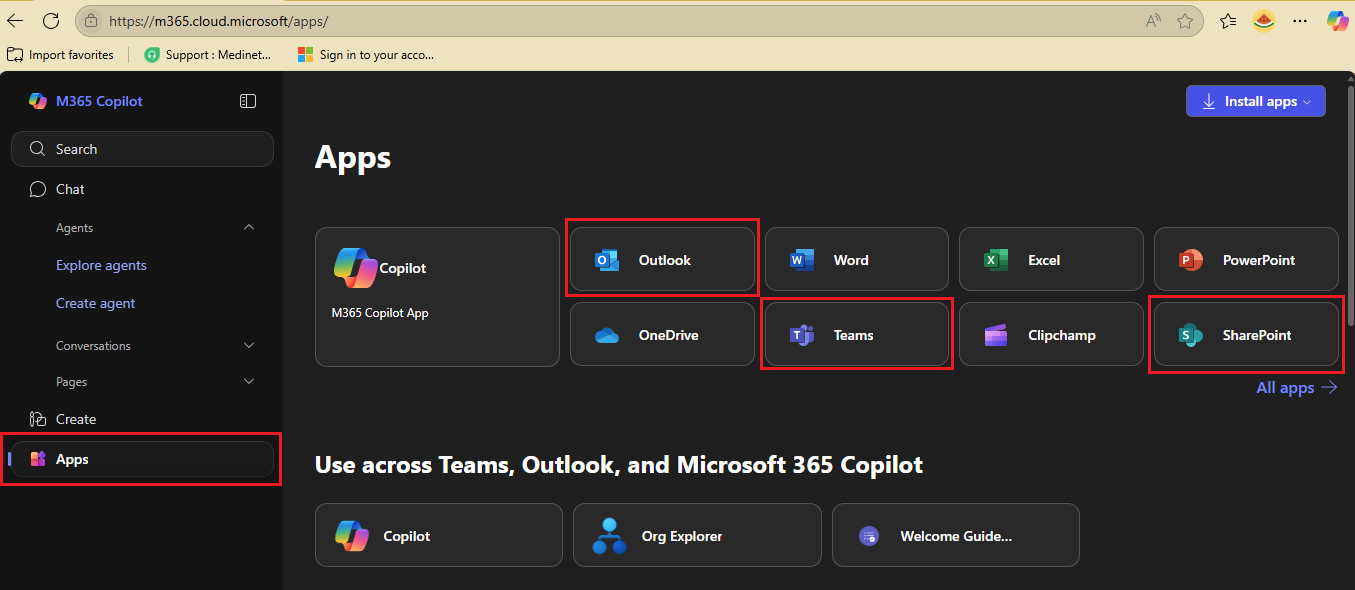
Users may also get the M365 Copilot view - https://m365.cloud.microsoft/:
Next action - download, install and login to the VPN.
Was this article helpful?
That’s Great!
Thank you for your feedback
Sorry! We couldn't be helpful
Thank you for your feedback
Feedback sent
We appreciate your effort and will try to fix the article