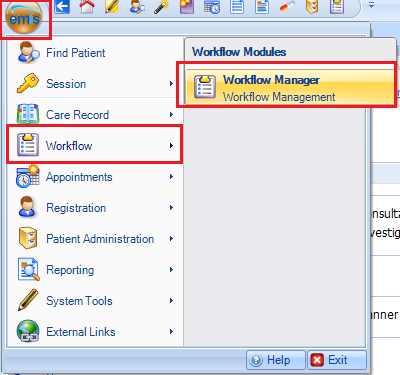
To view any EMIS Tasks assigned to you, navigate to Workflow Manager either from your Quick Access Toolbar:

or via the Menu:
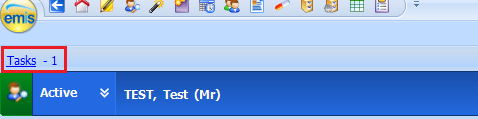
If you have any Tasks outstanding (either sent to you as an individual or sent to a Team you are a member off) you will see as a hyperlink just below the Quick Access Toolbar. Clicking on this will also take you to Workflow Manager.
A list of tasks sent to you or the Team you are a member of will be presented in the To-Do List menu:
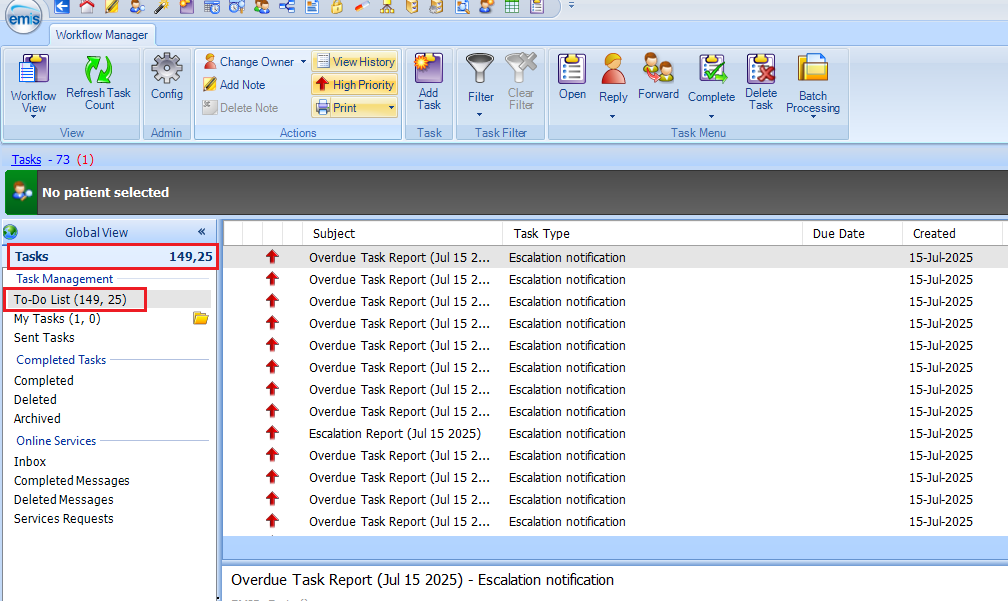
Click on a Task to view it and undertake the task as requested.
You have the option to Reply/Reply All (for further info) or Forward or complete the task:
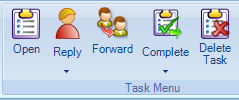
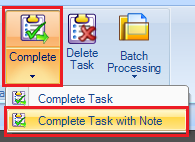
To complete, click on the complete arrow and select “Complete Task with Note”
The following pop up will appear. Add any notes to help the admin team on your steps, finding and next steps. Click OK

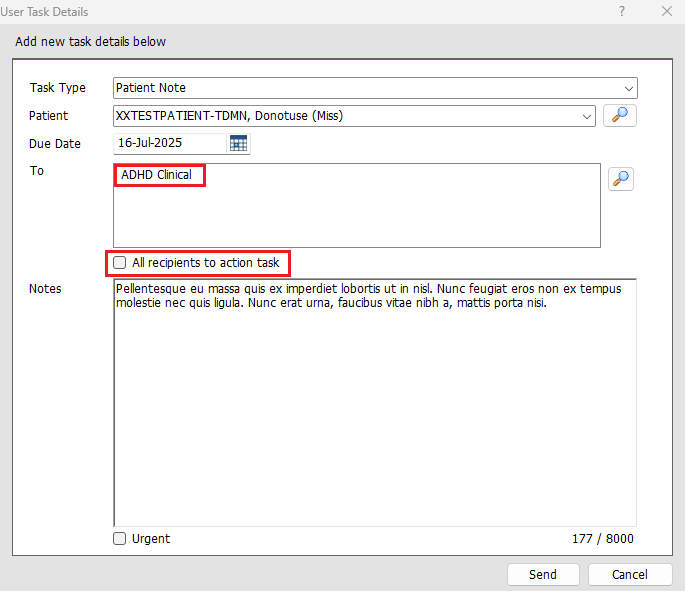
If a Task is sent to a Team and the check box 'All recipients to action task' (see below) is not checked, once a member of the team has actioned the task, it will disappear from all team members To-Do List.
Was this article helpful?
That’s Great!
Thank you for your feedback
Sorry! We couldn't be helpful
Thank you for your feedback
Feedback sent
We appreciate your effort and will try to fix the article