If we need to access your own device remotely we will use two methods.
Method 1: Quick Assist
Windows 11 has a built in remote assist tool called Quick Assist. Do a search in Windows for 'Quick Assist' and open it.
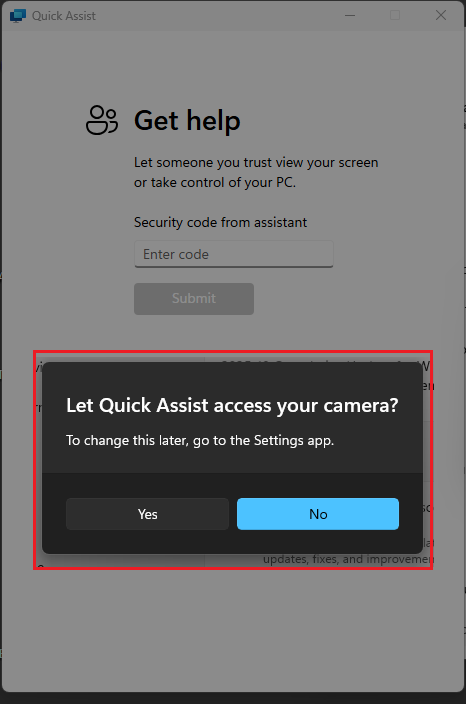
The first time you open Quick Assist you will be asked to Let Quick Assist access your camera - say No:
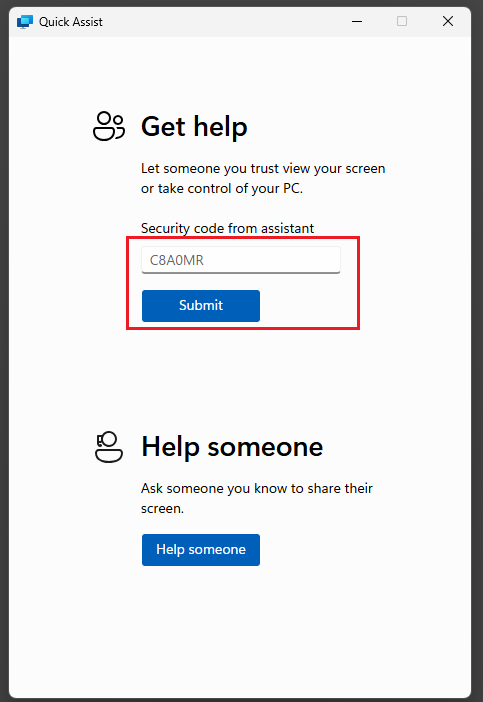
The support engineer will give you a 6 digit alphanumeric code. Enter this in the 'Security code from assistant' box and click on Submit:
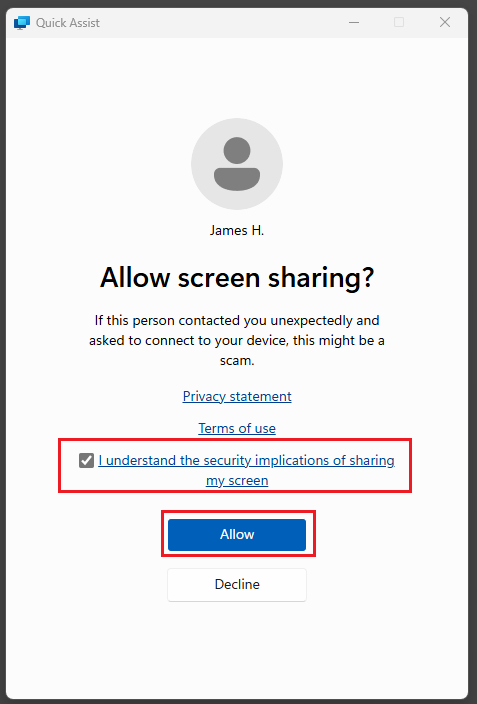
Check the 'I understand....' statement and click on Allow:
When you are screen sharing you will see at bar at the top of your screen saying 'Screen sharing on':

The support engineer will request to control your screen. Click on Allow:

If Quick Assist does not run (just hangs) - it needs the latest Windows Updates applied to your laptop. If the support engineer need to access your screen immediately they will use Method 2 below - RemotePC.
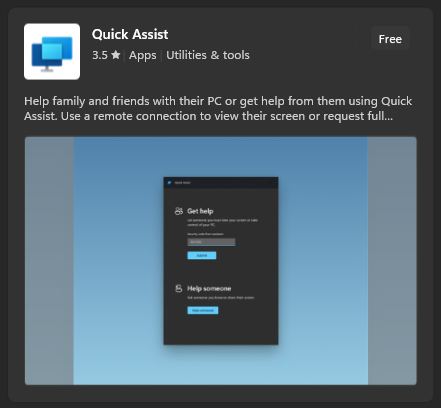
If your Windows device does not have Quick Assist, it can be downloaded from the Microsoft Store:
Method 2: Remote PC
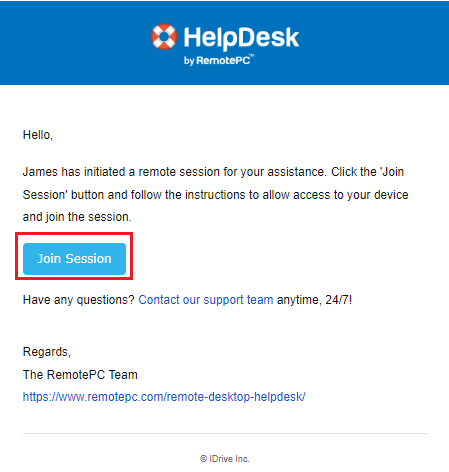
The support engineer will send you an email that will come from RemotePC:

Open the email and click on Join Session:
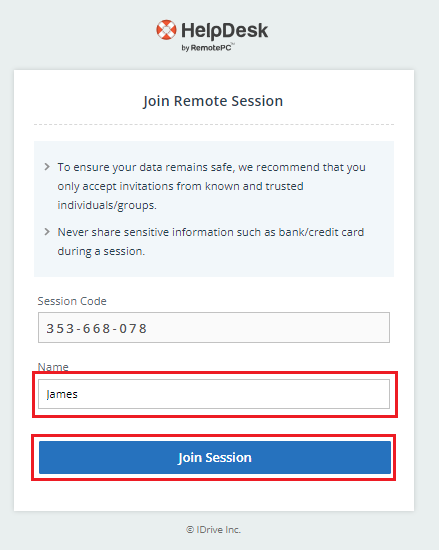
You will then see a Join Remote Session screen - enter your name and click on Join Session:
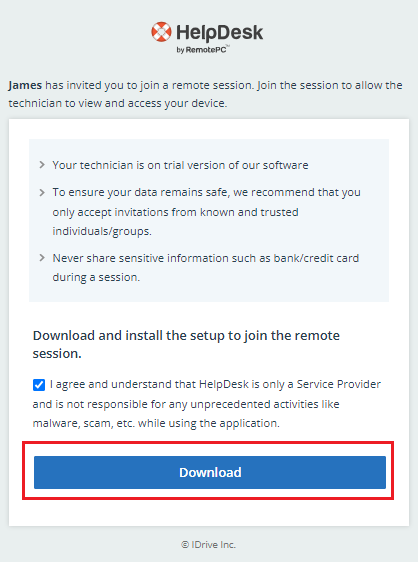
If it is the first time you have been asked to use RemotePC you will be prompted to download the remote session software. Click on Download:
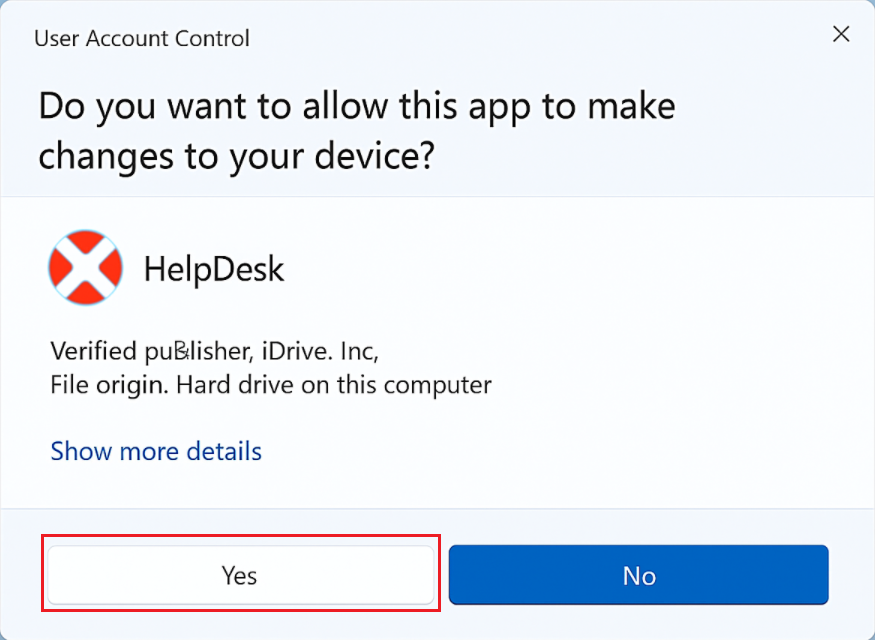
You may get prompted by Windows asking if you want to allow this app to make changes to your device. Click on Yes.
The file will download (make a note where it downloads too):
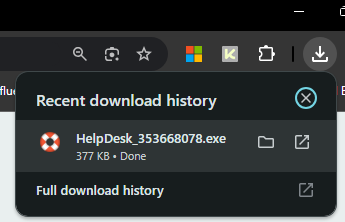
Either click on the file above to run or navigate to where the file has downloaded to (i.e. Downloads) and double click on it to run .
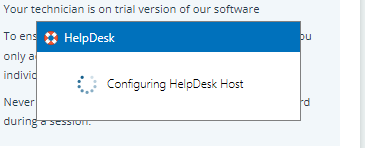
You will see the message - Configuring HelpDesk Host:
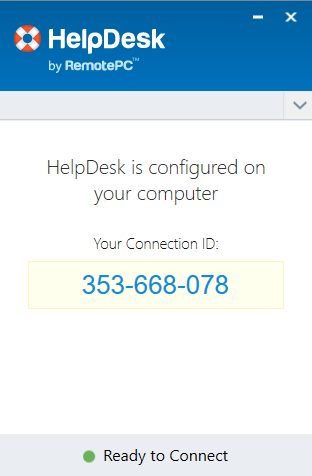
When it has finished, you will then see the following window that HelpDesk is configured on your computer and is ready to connect. The support person can now connect to your device.
Was this article helpful?
That’s Great!
Thank you for your feedback
Sorry! We couldn't be helpful
Thank you for your feedback
Feedback sent
We appreciate your effort and will try to fix the article